Tutorial: Installing Etherpad On A Local Server
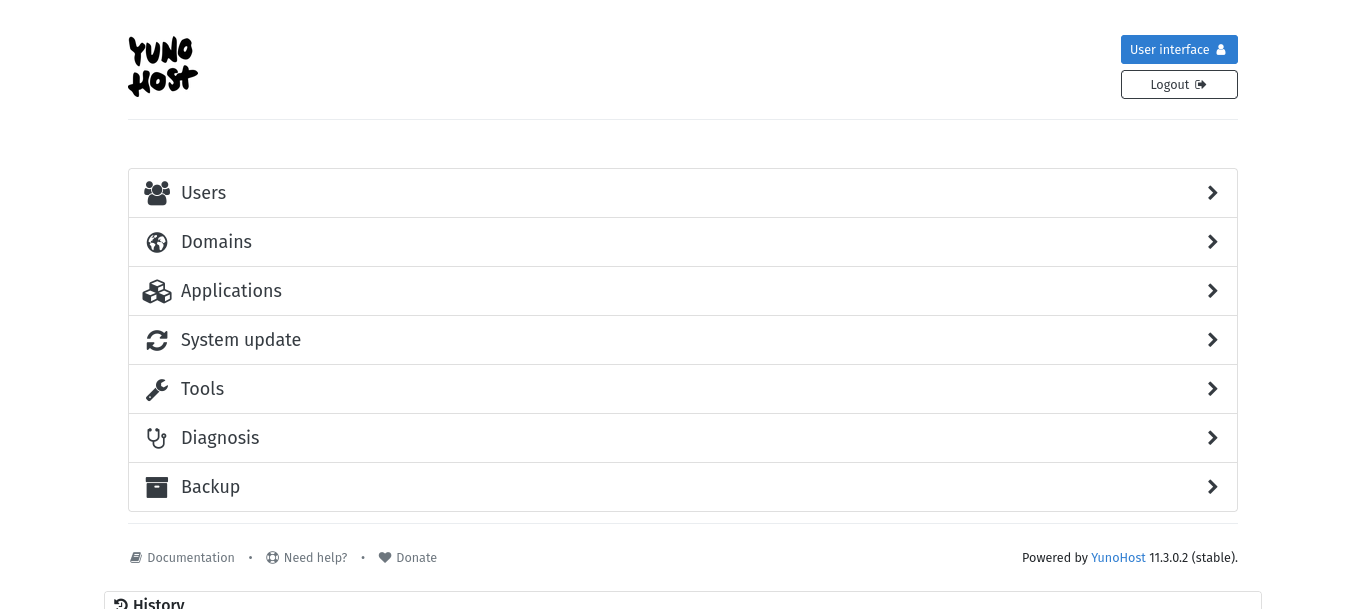
This tutorial is intended to be used after successfully installing Yunohost onto your own server, so we are assuming you can already see the screenshot below on your local network, by visiting yunohost.local or the local IP address of your server (if you installed Yunohost on a server in the cloud, then follow this tutorial to install Etherpad in the cloud instead).
Yunohost mostly assumes that applications will be accessed via DNS (the domain system). This is fine for most use cases on the public internet, although we have to work around this if we want to use an application on our local network before putting it on the public internet.
So before installing an application, add a new domain in the Yunohost domains interface that we will use for your next application.
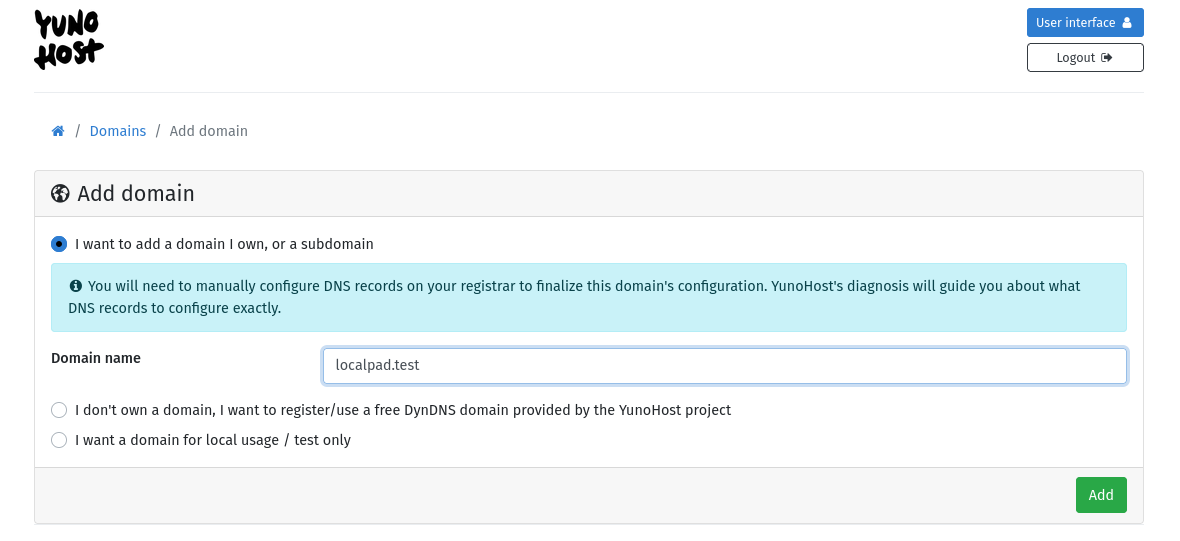 You can use whatever made up domain you want for this, you don't even have to actually own the domain.
You can even use a public domain you don't own like google.com (could be a fun experiment), since we are going to override it.
Don't worry if the "lets encrypt certificate" fails after creating the domain — we only have to worry about https certificates when we put an application on the public internet.
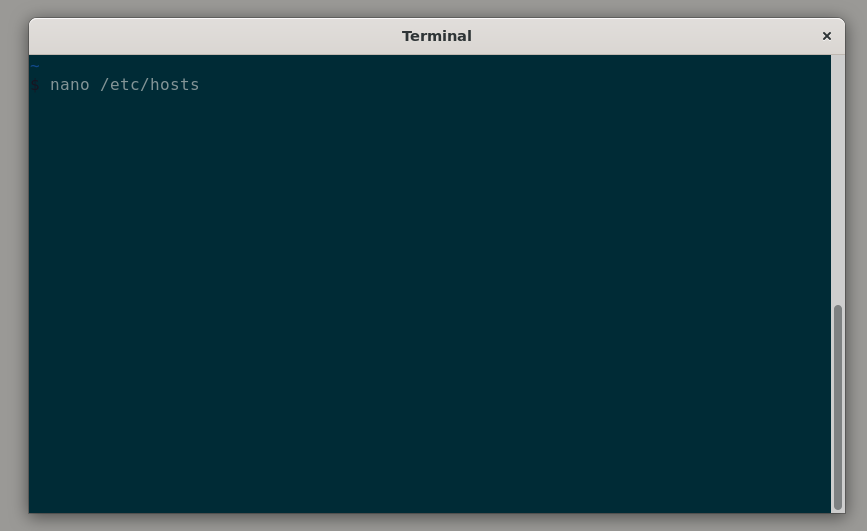
Now after creating the new domain, lets open Terminal on our laptop, and run nano /etc/hosts (you can also use sublime instead of nano, if you set up sublime, and prefer that).
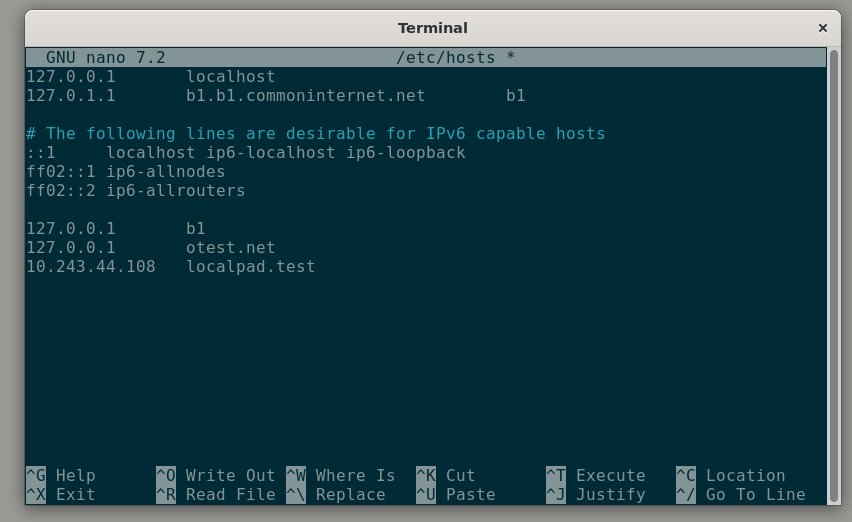
Then add a new line that looks something like this:
10.243.44.108 localpad.test
But instead of 10.243.44.108 use the local IP address of your server, and instead of localpad.test use whatever domain name you chose in the previous step.
/etc/hosts will then look something like this (although not exactly):
Now in your browser on your laptop, when you go to localpad.test (or whatever domain you chose) it should show the yunohost admin interface.
The file /etc/hosts is a special file which your computer checks for domain names before looking up a domain on the internet.
If you wanted, you could re-wire domains on your laptop to different things. For example, if you added the line:
10.243.44.108 google.com
then when you visit google.com, instead of going to google, it will take you to the server at that IP address.
Of course this just effects your laptop (not anyone else going to google.com).
⚘⚘⚘⚘⚘⚘⚘⚘⚘⚘⚘⚘⚘⚘⚘⚘⚘⚘⚘⚘⚘⚘⚘⚘⚘⚘⚘⚘⚘⚘⚘⚘⚘⚘⚘⚘⚘⚘⚘⚘⚘⚘⚘⚘⚘
Now that we have a special domain wired up just for our local network. Lets install an application there. Go into the "Applications" section of the Yunohost admin, and select "+ Install" and then search for Etherpad. This is the same way you can install other applications in Yunohost as well, but lets start with Etherpad since its a relatively simple application.
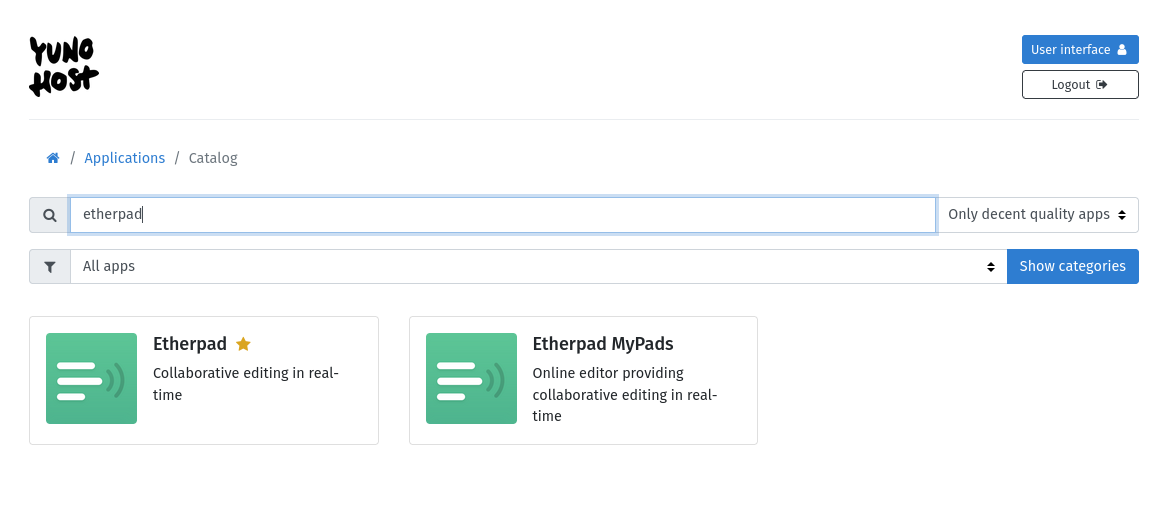 Select "Etherpad Mypads", then choose a set of install settings something like below (note: "Etherpad" should also be fine, but on my most recent testing, there was a bug in the "Etherpad" package and only "Etherpad MyPads" worked. They may fix the package in the future, but if you run into the same issue as me "Etherpad MyPads" may be the best option for now):
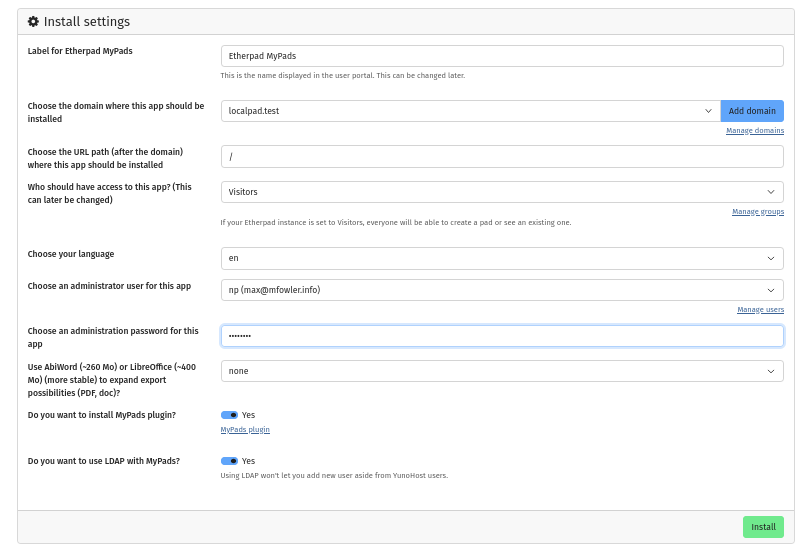
After clicking "Install" you may get a warning like "Are you sure you want to install this application on '/'? You will not be able to install any other app on [localpad.test]". This warning is true, but it is ok, and you can continue.
Sidenote on how to organize multiple applications installed on a server: when you install an application on the path '/' it is saying that this will be the only application installed on that domain. Alternatively, if you choose an installation location like '/myapp' than you will access the application via localpad.test/myapp and you could also install a second application on the same domain at the path /myotherapp which you would access via localpad.test/myotherapp. This is one way to organize things (by subpaths), but there are some apps which are not able to installed in this way, and need to be installed on '/' on their own domain just for them — so instead, I prefer to organize things so that each application has its own unique sub domain and is installed on '/' for that domain, and when I want to install multiple applications, I make a new subdomain for each application, e.g. the way it is organized on the class server:
-
pad.commoninternet.net —> etherpad
-
o.commoninternet.net —> outline
-
v.commoninternet.net —> peertube
/endofsidenote
If installation succeeded, you should see a message like this:
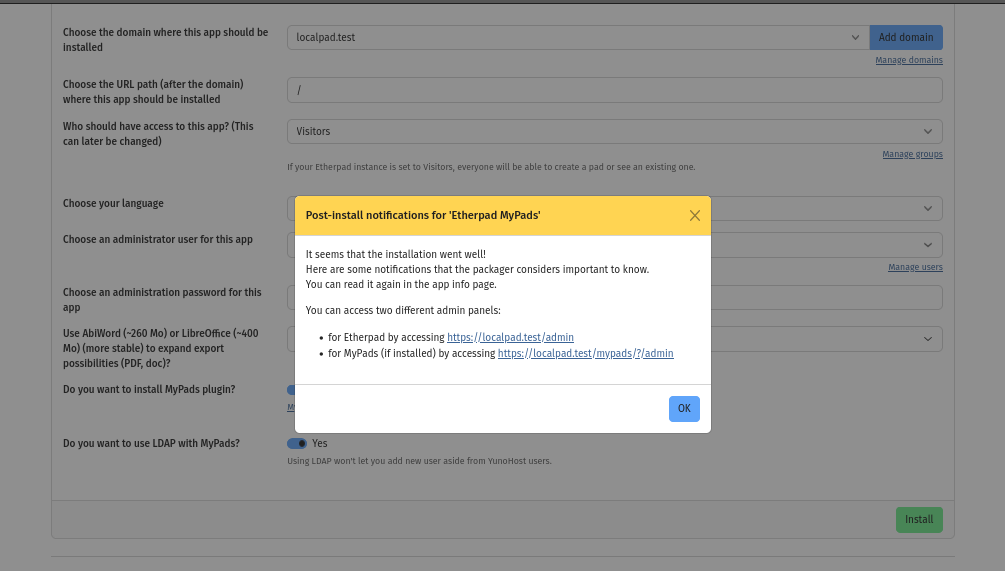
Although sometimes you don't see this message, but it still succeeded. In this case, refresh the page, and go to "Applications" and see if Etherpad is there now.
Now when you visit localpad.test in your browser (or your domain) you should see a warning that the https certificate is invalid. Click "Advanced" and "continue" or "ignore warning" and then it should take you to etherpad.

You now have a local instance of Etherpad running on your local network.
Congrats on getting your own local server running.
⚘⚘⚘⚘⚘⚘⚘⚘⚘⚘⚘⚘⚘⚘⚘⚘⚘⚘⚘⚘⚘⚘⚘⚘⚘⚘⚘⚘⚘⚘⚘⚘⚘⚘⚘⚘⚘⚘⚘⚘⚘⚘⚘⚘⚘
If Etherpad ran into errors while installing, you can try again, or also sanity check by trying installing some other simple applications such as Hedgedoc and Lichen-Markdown.
In future tutorials we will go over how to make your Yunohost applications visible to the public internet, as well as how to make your own website using Yunohost using hand-written HTML or Lichen-Markdown.