Tutorial: Getting Started With Yunohost
Yunohost is a software to help people easily manage a server "for your friends, your association or your company".
Its an open source project, grant-funded, that started in France (so you will see a lot of french-first documentation of the project, but usually there are options to translate to English). Interestingly, there is a really strong French alternative technology movement which is an interesting contrast to the US Silicon Valley cultural trend. Chatons is another interesting and related French project: "CHATONS – kittens in french – is the Collective of Hosters Alternative, Transparent, Open, Neutral and Solidarity."
Because Yunohost intends to make it easy to setup and maintain your own server, the documentation is quite good, so we recommend to follow the Yunohost installation guide directly:
https://doc.yunohost.org/en/install
If your installation is successful, then on your laptop, when you are connected to the same WIFI as your server, you should be able to use your browser to visit the url http://yunohost.local, and see the yunohost admin interface for your server, that looks like this:
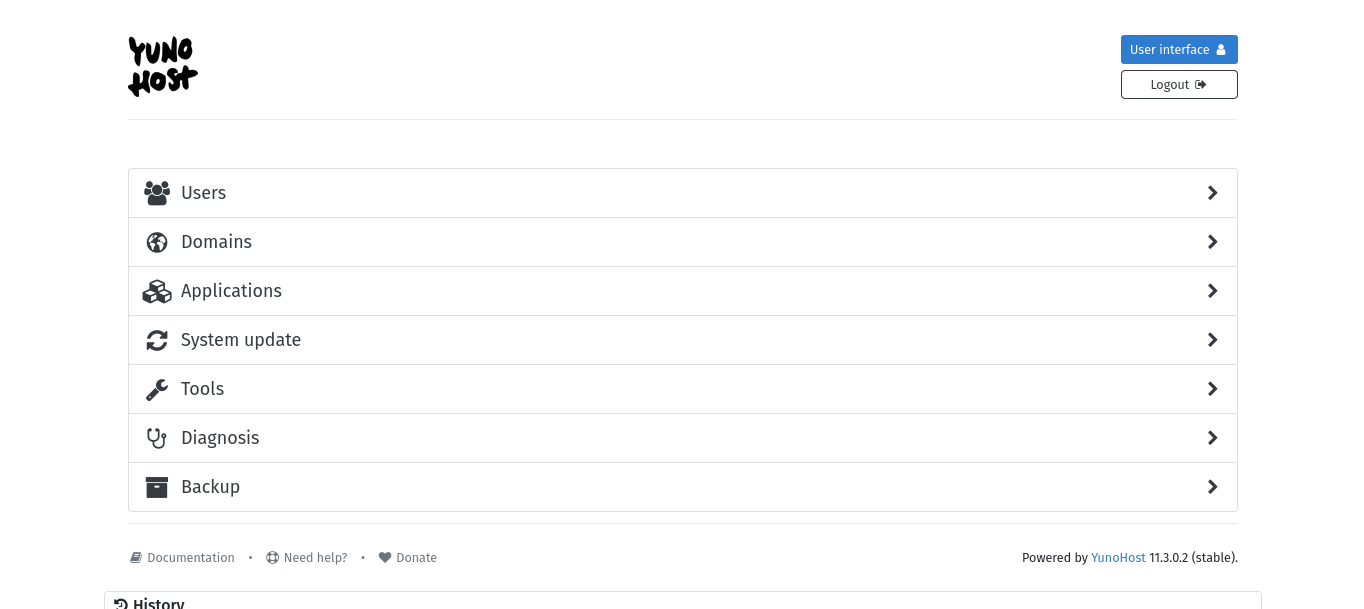
yunohost.local is a special local-only URL that yunohost creates that allows you to access it on your local network, even when yunohost is not yet visible on the public internet.
Sometimes, the installation will succeed, but the yunohost.local domain will still not be properly broadcast, and you need to look up the local IP address of your server directly. You can do this on the terminal, with a screen and keyboard attached to your server. In the terminal, after logging in, run the command ip a and this will show you the local IP address of your server. You can then enter this IP address directly into the URL bar of your browser, and it should also take you to the yunohost server admin interface.
⚘⚘⚘⚘⚘⚘⚘⚘⚘⚘⚘⚘⚘⚘⚘⚘⚘⚘⚘⚘⚘⚘⚘⚘⚘⚘⚘⚘⚘⚘⚘⚘⚘⚘⚘⚘⚘⚘⚘⚘⚘⚘⚘⚘⚘
In addition to the Yunohost written guide, I've also made a video tutorial if you prefer following along that way.
Here is a video tutorial on how to install Yunohost on a raspberry pi:
https://www.youtube.com/watch?v=LaHqJFJu3jI
If you didn't find hardware to practice using as a server for this class, you can also run Yunohost in "The Cloud".
Here is a video tutorial on how to install Yunohost using the cloud provider "Digital Ocean":
https://www.youtube.com/watch?v=NDcV8RqqXmE
Lastly, Yunohost themselves include some interesting documentation on the pros and cons and costs of running a server at home or in the cloud:
https://doc.yunohost.org/en/howtohostyourself
You can also refer back to the first tutorial on "Sourcing Hardware".
Our first goal is to just get Yunohost running and accessible from your local WIFI network. In future tutorials, we'll talk about installing applications and making your server visible to the public internet.
⚘⚘⚘⚘⚘⚘⚘⚘⚘⚘⚘⚘⚘⚘⚘⚘⚘⚘⚘⚘⚘⚘⚘⚘⚘⚘⚘⚘⚘⚘⚘⚘⚘⚘⚘⚘⚘⚘⚘⚘⚘⚘⚘⚘⚘
note: if you are installing Yunohost onto hardware that isn't a raspberry pi, there could be some other glitches or obstacles that come up. Its cool that Yunohost can potentially be installed onto so many different old computers, but different computer models also have unique issues that can lead to unexpected issues. Don't hesitate to reach out on Discord or in office hours and lets see what old computers we can bring back to life.