Tutorial: Installing Etherpad In The Cloud
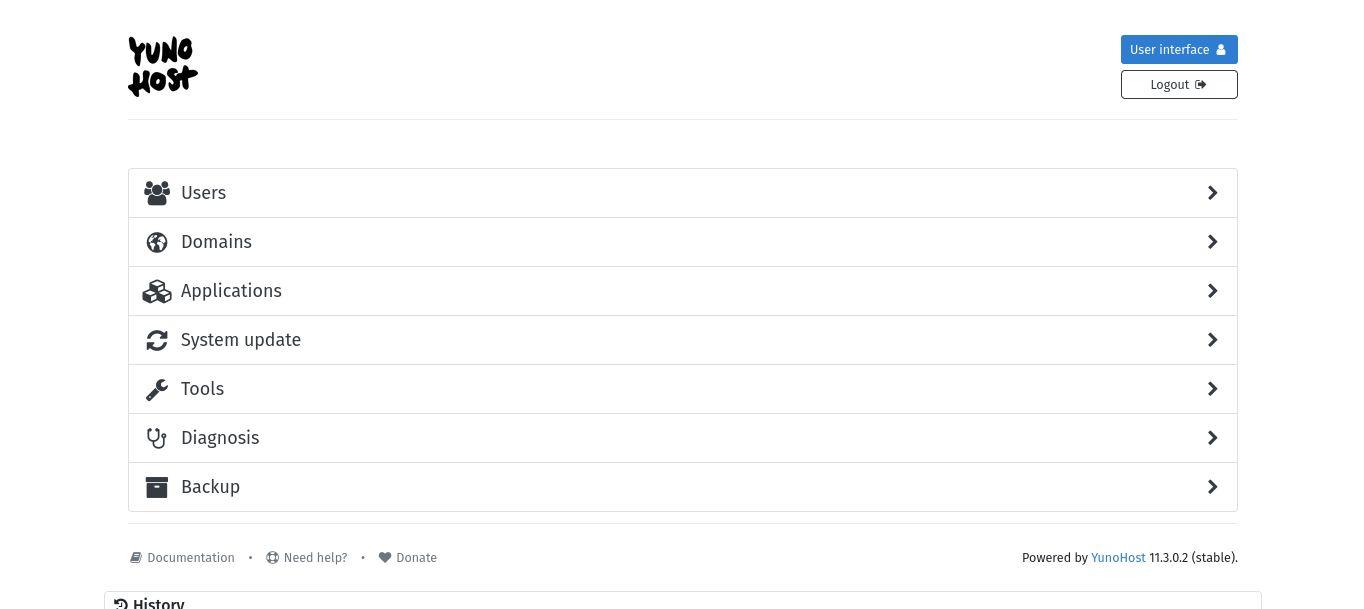
This tutorial is intended to be used after successfully installing Yunohost onto a server in the cloud such as Digital Ocean. If you installed Yunohost onto a local server, follow this tutorial instead. If you haven't yet installed Yunohost on the cloud but want to, check out this video tutorial. Once you have have yunohost installed in the cloud, you can find the public IP address of your cloud server by going into your cloud provider web interface (such as Digital Ocean) and looking up the IP address of your server. When you visit that IP address and log in you should see this admin interface screenshotted below.
When you are first starting, the easiest way is to use a domain created by the Yunohost project, that looks something like mycutename.nohost.me .
If you haven't already created a domain like this for your, server, you can create one through the domains section of the yunohost admin interface.
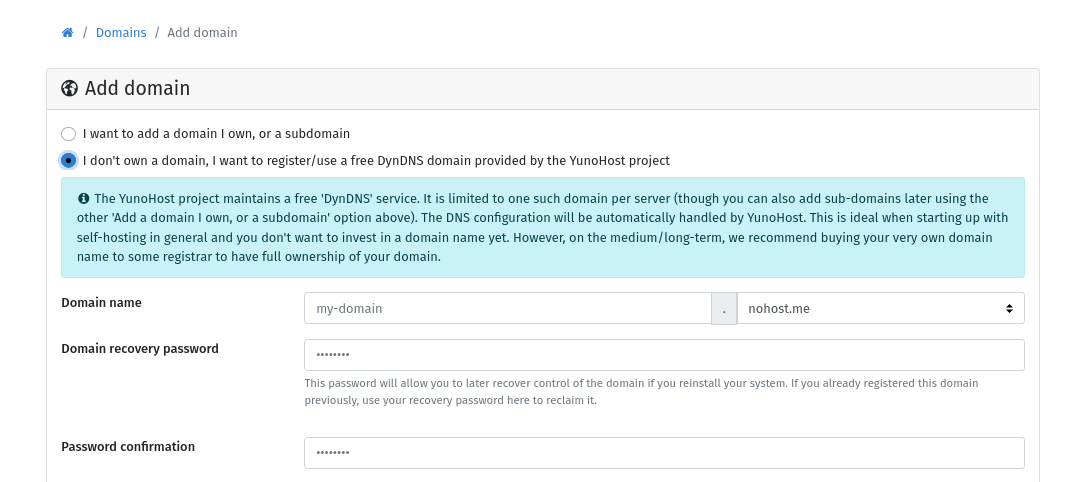
Once this domain is setup, you can then install an application on your Yunohost connected with that domain, and use that application through the public internet.
⚘⚘⚘⚘⚘⚘⚘⚘⚘⚘⚘⚘⚘⚘⚘⚘⚘⚘⚘⚘⚘⚘⚘⚘⚘⚘⚘⚘⚘⚘⚘⚘⚘⚘⚘⚘⚘⚘⚘⚘⚘⚘⚘⚘⚘
Go into the "Applications" section of the Yunohost admin, and select "+ Install" and then search for Etherpad. This is the same way you can install other applications in Yunohost as well, but lets start with Etherpad since its a relatively simple application.
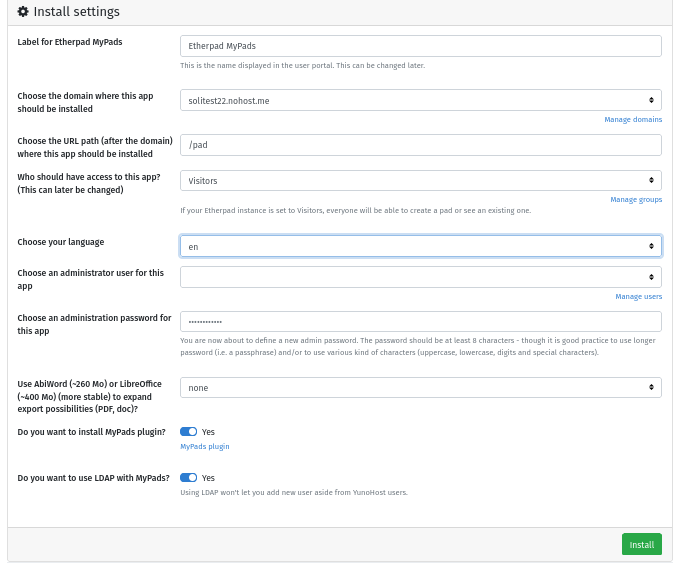
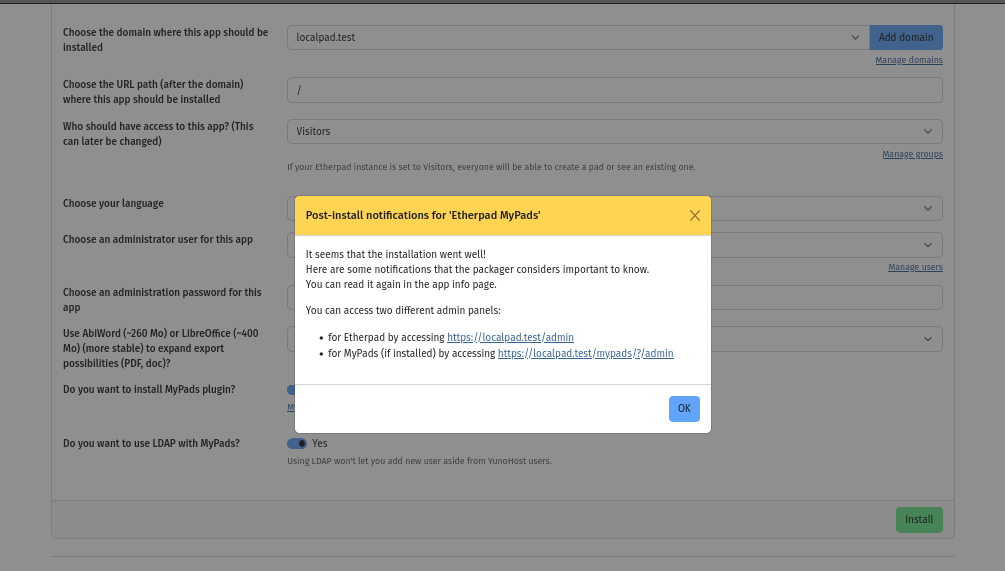
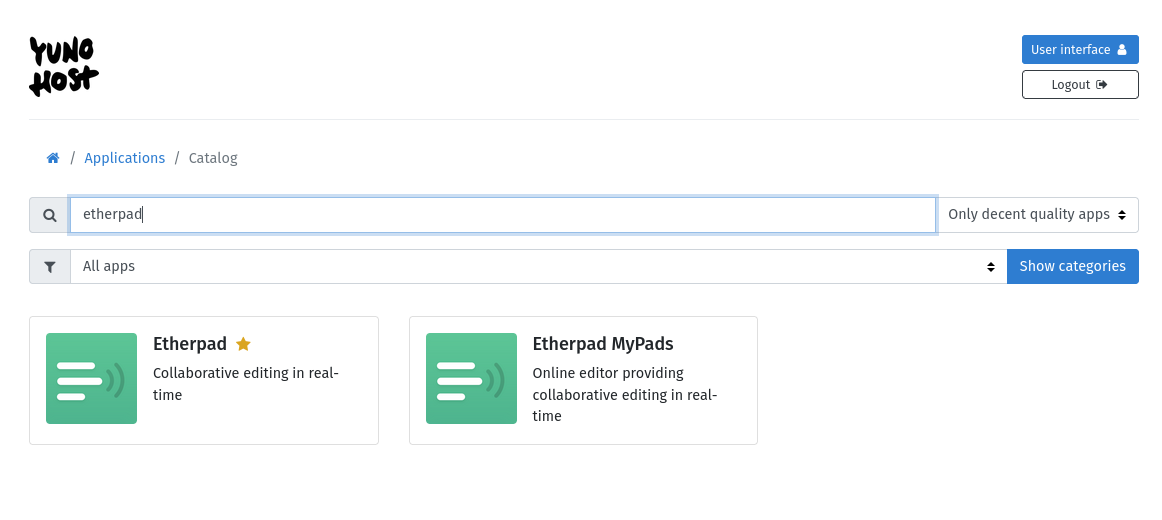 Select "Etherpad Mypads", then choose a set of install settings something like below (note: "Etherpad" should also be fine, but on my most recent testing, there was a bug in the "Etherpad" package and only "Etherpad MyPads" worked. They may fix the package in the future, but if you run into the same issue as me "Etherpad MyPads" may be the best option for now):
If installation succeeded, you should see a message like below.
Although sometimes you don't see this message, but it still succeeded. In this case, refresh the page after 5-10 minutes, and go to "Applications" and see if Etherpad is there now.
Now when you visit mycutename.nohost.me/pad in your browser (or your domain) you should see a warning that the https certificate is invalid. Click "Advanced" and "continue" or "ignore warning" and then it should take you to etherpad.
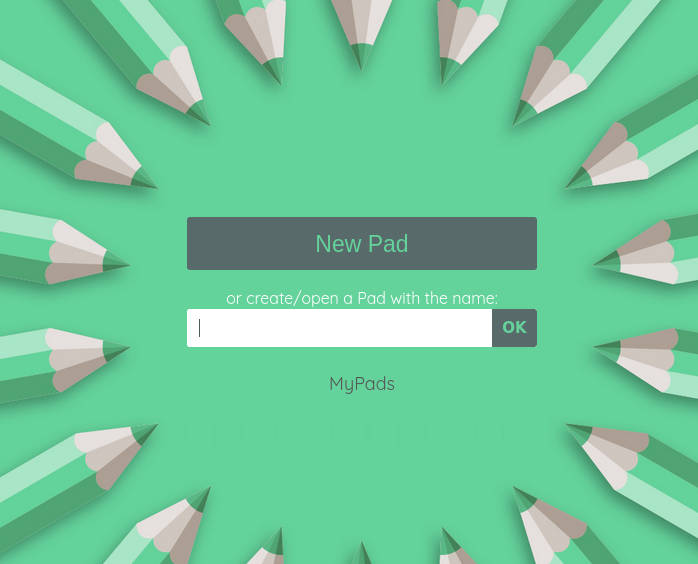
You now have an instance of Etherpad running on your server.
Congrats on getting your server running.
⚘⚘⚘⚘⚘⚘⚘⚘⚘⚘⚘⚘⚘⚘⚘⚘⚘⚘⚘⚘⚘⚘⚘⚘⚘⚘⚘⚘⚘⚘⚘⚘⚘⚘⚘⚘⚘⚘⚘⚘⚘⚘⚘⚘⚘
If Etherpad ran into errors while installing, you can try again, or also sanity check by trying installing some other simple applications such as Hedgedoc and Lichen-Markdown.
Note that lichen-markdown requires being installed on the root of a domain, not a subpath, so to install lichen-markdown you will need to make a new domain for it through the domain section of the admin interface before installing. For the new domain you make, you can make it a subdomain of your nohost domain, such as myapp.mycutename.nohost.me, or you can make a new domain configuration for a domain that you actually own and have registered at a DNS registrar somewhere (but this is more complicated). If you choose to go that route, a full guide on how to do DNS configuration for your own domain for Yunohost is here. Again note that you can make additional subdomains of mycutename.nohost.me without doing any additional DNS configuration.