Tutorial: Getting Started With Terminal
This is a tutorial on getting started in Terminal, which we will go through together on Week 2.
Many thanks to Melanie Hoff, and Digital Love Languages, which will be the guide for this introduction. (https://lovelanguages.melaniehoff.com/week-2-%e2%9c%a7-folder-poetry-2/).
Black Gooey Universe by American Artist (one of the readings assigned for week 2), is also a great reference for thinking about Terminal, GUIs and computer interfaces: https://static1.squarespace.com/static/59238d36d2b8575d127794a4/t/5a60bdecf9619a7f881b02a0/1516289526013/UNBAG_2_AmericanArtist.pdf
So lets hack our computer / re-introduce ourselves to computers / get started with terminal.
⚘⚘⚘⚘⚘⚘⚘⚘⚘⚘⚘⚘⚘⚘⚘⚘⚘⚘⚘⚘⚘⚘⚘⚘⚘⚘⚘⚘⚘⚘⚘⚘⚘⚘⚘⚘⚘⚘⚘⚘⚘⚘⚘⚘⚘⚘⚘⚘⚘
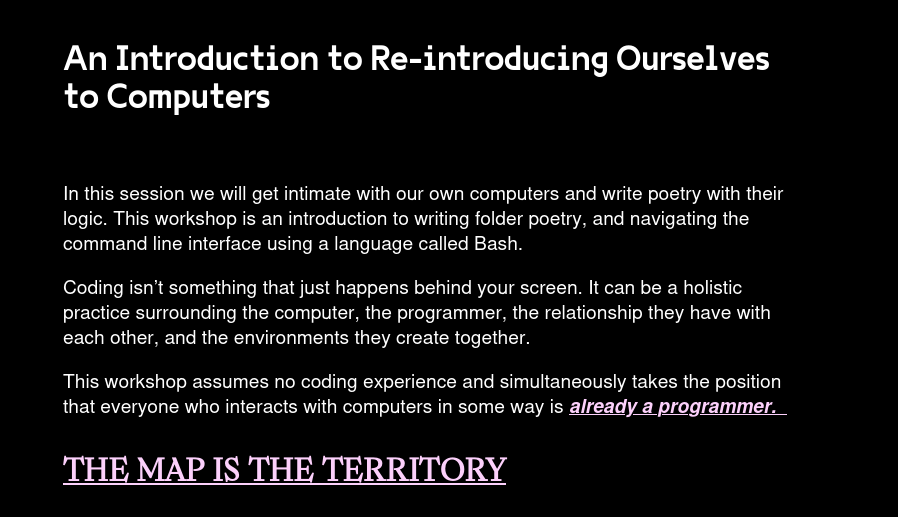
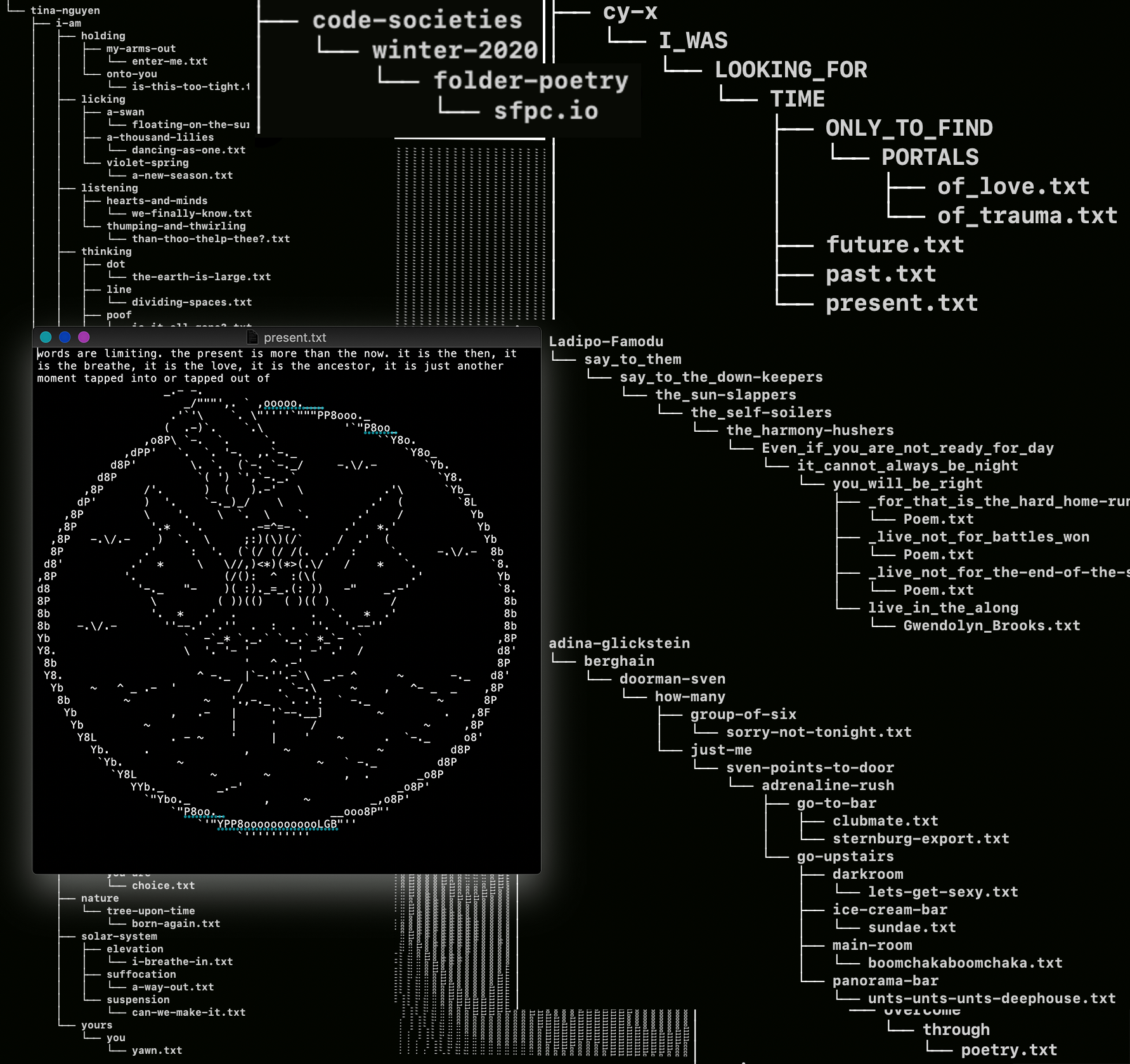
⚘⚘⚘⚘⚘⚘⚘⚘⚘⚘⚘⚘⚘⚘⚘⚘⚘⚘⚘⚘⚘⚘⚘⚘⚘⚘⚘⚘⚘⚘⚘⚘⚘⚘⚘⚘⚘⚘⚘⚘⚘⚘⚘⚘⚘⚘⚘⚘⚘
First we need to open Terminal, an application for using the command line.
On Mac:
- We'll use Iterm or the default Mac Terminal
- To open, press CMD + SPACE & search for iterm or terminal (it'll also be in your applications folder
- We will use bash instead of zsh if you are new to terminal. To switch from zsh to bash, enter the following line in your terminal:
chsh -s /bin/bash
On Windows:
- Follow these steps: https://stackoverflow.com/questions/42606837/how-do-i-use-bash-on-windows-from-the-visual-studio-code-integrated-terminal
- How to copy and paste a line in Git bash?
- Ctrl + Shift + C / V
On Linux:
- Depending on what flavor of linux you are using, things may vary. If you are using a Linux flavor with gnome, you can press the "windows" key and then type "term" and find the terminal. Possibly if you are using Linux you already know how to use the Terminal but I don't want to assume.
⚘⚘⚘⚘⚘⚘⚘⚘⚘⚘⚘⚘⚘⚘⚘⚘⚘⚘⚘⚘⚘⚘⚘⚘⚘⚘⚘⚘⚘⚘⚘⚘⚘⚘⚘⚘⚘⚘⚘⚘⚘⚘⚘⚘⚘⚘⚘⚘⚘
Now that Terminal is open, let's explore:
- Let's see who we are? type the bellow command and press enter. we'll do that for all of these following code blocks eventually
whoami
- let's check the weather just because…
curl wttr.in
Helpful Terms
https://gist.github.com/melaniehoff/158aeee648d006ffc278cc1e610d48b3#file-helpful-terms-md
⚘⚘⚘⚘⚘⚘⚘⚘⚘⚘⚘⚘⚘⚘⚘⚘⚘⚘⚘⚘⚘⚘⚘⚘⚘⚘⚘⚘⚘⚘⚘⚘⚘⚘⚘⚘⚘⚘⚘⚘⚘⚘⚘⚘⚘⚘⚘⚘⚘
⚠️Folder Poetry Best Practices⚠️
- all-lowercase-filenames-and-folder-names
- No spaces
- Use dashes or underscores. for example: my_file.txt or my-file.txt
⚘⚘⚘⚘⚘⚘⚘⚘⚘⚘⚘⚘⚘⚘⚘⚘⚘⚘⚘⚘⚘⚘⚘⚘⚘⚘⚘⚘⚘⚘⚘⚘⚘⚘⚘⚘⚘⚘⚘⚘⚘⚘⚘⚘⚘⚘⚘⚘⚘
Text Editor
In addition to a Terminal, it will also be helpful to have a simple text editor for making .txt files (the most basic text file format).
If you don't already have a text editor you like (e.g. VS Code, Vim, Atom), I recommend nano or Sublime.
nano is a very minimal text editor that you can use through terminal itself. to use nano, in terminal you type nano myfilethatiwanttoedit.txt and then you can edit the file in the terminal. When you are done making edits, you need to save and exit by pressing Ctrl+X and then pressing Y to confirm. After this, you will be returned to your terminal to wherever you were before you started using nano.
Sublime is a more feature-rich text editor, which runs as its own application. It comes with more useful features than nano, but will require installing it, configuring terminal so that you can open sublime from the terminal, and more jumping back and forth between terminal and sublime. If you want to use Sublime, you can download it here https://www.sublimetext.com/, and here is a guide for how to configure Sublime so it can be opened via the command line.
nano and sublime are both text editors and either one will work just fine for this tutorial.
Bash commands
https://gist.github.com/melaniehoff/32b14210b7ea6f605f625eabdf8b3968#file-bash-commands-md
⚘⚘⚘⚘⚘⚘⚘⚘⚘⚘⚘⚘⚘⚘⚘⚘⚘⚘⚘⚘⚘⚘⚘⚘⚘⚘⚘⚘⚘⚘⚘⚘⚘⚘⚘⚘⚘⚘⚘⚘⚘⚘⚘⚘⚘⚘⚘⚘⚘
The file ~/.bash_profile can be used to customize your terminal and add your own aliases (shortcuts).
- Open the file in your text editor, and start customizing (e.g.
subl ~/.bash_profile)
Here are some commands you could copy into your bash_profile (or invent your own).
# the below line changes your command prompt
# your command prompt is the first thing you see every time you open terminal and what appears before each of your commands. Change the emoji to yyoouurrrr emoji
export PS1="🍋 \w\n$ "


# handy aliases
alias d='cd ~/Desktop'
alias sp='source ~/.bash_profile'
alias bp='code ~/.bash_profile'
alias c='clear'
# shows hidden files
alias lh="ls -AF"

alias ty='for i in {1..5000}; do printf "  👋 🙌 THANK YOU 🙌 👋   "; done;'
alias swim='for i in {1..5000}; do printf "  swimmingly 🪸 🪼 🪸 🐬 🪸 💦 💧 💧 💧    "; done;'
alias heart='for i in {1..5000}; do printf "  ⚘ ⚔️ 💧 🫀 🩸    "; done;'
⚘⚘⚘⚘⚘⚘⚘⚘⚘⚘⚘⚘⚘⚘⚘⚘⚘⚘⚘⚘⚘⚘⚘⚘⚘⚘⚘⚘⚘⚘⚘⚘⚘⚘⚘⚘⚘⚘⚘⚘⚘⚘⚘⚘⚘⚘⚘⚘⚘
On Mac:
- Then we'll install Homebrew, software for macs that helps with installing open source software
- copy paste the below and press enter. you will see a lot of text and be asked to enter your password. you will be asked to enter y/n. enter y!
/bin/bash -c "$(curl -fsSL https://raw.githubusercontent.com/Homebrew/install/HEAD/install.sh)"
- then we'll use homebrew to install a software called "tree" that will help us visualize our poetry in tree like structures
brew install tree
- then you can run tree to visualize a directory structure in terminal
tree
⚘⚘⚘⚘⚘⚘⚘⚘⚘⚘⚘⚘⚘⚘⚘⚘⚘⚘⚘⚘⚘⚘⚘⚘⚘⚘⚘⚘⚘⚘⚘⚘⚘⚘⚘⚘⚘⚘⚘⚘⚘⚘⚘⚘⚘⚘⚘⚘⚘
With much appreciation to Melanie Hoff for the guides:
https://lovelanguages.melaniehoff.com/week-2-%e2%9c%a7-folder-poetry-2/
https://www.are.na/melanie-hoff/learning-gardens-code
And here is another beautiful Terminal reference from Taeyoon Choi:
And here is a guide into a longer deep-dive into folder poetry.
⚘⚘⚘⚘⚘⚘⚘⚘⚘⚘⚘⚘⚘⚘⚘⚘⚘⚘⚘⚘⚘⚘⚘⚘⚘⚘⚘⚘⚘⚘⚘⚘⚘⚘⚘⚘⚘⚘⚘⚘⚘⚘⚘⚘⚘⚘⚘⚘⚘
    ✺✺✺✺✺✺✺✺✺✺✺✺✺✺✺✺✺✺✺✺✺✺✺✺✺✺✺✺✺✺✺✺✺✺✺✺✺✺✺✺✺✺✺✺✺✺✺✺

      ✺✺✺✺✺✺✺✺✺✺✺✺✺✺✺✺✺✺✺✺✺✺✺✺✺✺✺✺✺✺✺✺✺✺✺✺✺✺✺✺✺✺✺✺✺✺✺

        ✺✺✺✺✺✺✺✺✺✺✺✺✺✺✺✺✺✺✺✺✺✺✺✺✺✺✺✺✺✺✺✺✺✺✺✺✺✺✺✺✺✺✺✺✺✺

          ✺✺✺✺✺✺✺✺✺✺✺✺✺✺✺✺✺✺✺✺✺✺✺✺✺✺✺✺✺✺✺✺✺✺✺✺✺✺✺✺✺✺✺✺✺

            ✺✺✺✺✺✺✺✺✺✺✺✺✺✺✺✺✺✺✺✺✺✺✺✺✺✺✺✺✺✺✺✺✺✺✺✺✺✺✺✺✺✺✺✺

              ✺✺✺✺✺✺✺✺✺✺✺✺✺✺✺✺✺✺✺✺✺✺✺✺✺✺✺✺✺✺✺✺✺✺✺✺✺✺✺✺✺✺✺

                ✺✺✺✺✺✺✺✺✺✺✺✺✺✺✺✺✺✺✺✺✺✺✺✺✺✺✺✺✺✺✺✺✺✺✺✺✺✺✺✺✺✺

                  ✺✺✺✺✺✺✺✺✺✺✺✺✺✺✺✺✺✺✺✺✺✺✺✺✺✺✺✺✺✺✺✺✺✺✺✺✺✺✺✺✺
                                      ⚘⚘
Assignment For Next Week
ssh into our class server and explore via terminal. decorate our virtual commune (by adding files and folders).
ssh visitor@commune.commoninternet.net
password: *********
More info about the assignment here.